Ik ben een dilemma tegengekomen: omdat Plex DVR-opnames niet langer als MKV’s wegschrijft, gaat de metadata die Plex aanmaakt verloren zodra de bestandsnaam van .TS naar .MKV verandert na conversie. Als ik MCEBuddy gebruik om de bestanden te hernoemen, krijg ik vaak onjuiste resultaten omdat ze uit verschillende databronnen putten (bijv. seizoen 4 in plaats van seizoen 2017 voor @Midnight, al zal dat probleem niet veel langer spelen, snik).
De metadata kan ik behouden als ik MCEBuddy aanroep via de postprocessing-scriptoptie. Dat heb ik werkend gekregen, maar het creëert een nieuw probleem: op dit moment bepaal ik of een opname door comskip moet op basis van de opnamelocatie (TV vs TV-Commercials). MCEBuddy heeft een handige mogelijkheid om de uitvoering van een bepaald profiel te beperken op basis van de gevolgde map. Die mogelijkheid lijkt er niet te zijn wanneer ik het via het script aanroep.
Is er een manier om selectief opnames door Comskip te laten lopen via de postprocessing-optie?
Ter referentie levert Plex DVR het volgende:
Het script draait in de map waarin je het hebt geplaatst.
DVR-postprocessing roept simpelweg je script op en geeft één variabele mee: het volledige pad en de bestandsnaam van de opgenomen video in de .grab-verwerkingsmap. Die variabele (bestandsnaam) kun je in je script aanspreken met standaard invoervariabelen:
Windows: %1
Linux/Unix/Android/Apple: $1
Dus overal in je script waar je naar het volledige pad en de bestandsnaam moet verwijzen, kun je de standaardvariabele gebruiken. Je kunt ook standaardmodificatoren gebruiken om naar delen van schijf/pad/bestandsnaam te verwijzen, met of zonder extensie:
Windows:
%~d1 = alleen schijf
%~p1 = alleen pad
%~n1 = alleen bestandsnaam zonder pad of extensie
In Windows moet %1 niet tussen aanhalingstekens staan, maar je moet gedeeltelijke verwijzingen wel tussen aanhalingstekens zetten omdat het pad/de bestandsnaam spaties bevat.
Is there any chance of enhancing MCEBuddy to respect the path that Plex provides as an input for determining what profile is used when it’s invoked via CLI / script?
In my old set-up, I limit the conversion tasks (either removing commercials or not) to a particular set of locations (recordings with commercials, commercial free recordings). This works pretty well for me.
When Plex DVR shifted back to .ts from .mkv, it means that the metadata that Plex has for that recording is lost unless I use the post-processing script option.
If I use the post-processing script option, there doesn’t seem to be any logic I can apply to choose one conversion task vs another, other than parsing the file name. This is really fragile, and requires me to update it whenever there’s a new recording.
What I’m hoping is that there’s an alternative approach / update to MCEBuddy so that I can pass it a file location (i.e., …/TV-Commercials) and as a result of that, it will choose the correct conversion task when invoked from the CLI / via script.
Hope this is clear - if I’m missing something and this is already possible, please let me know. Thanks! Will.
Laat me even kijken of ik je goed begrijp. Je wilt dat MCEBuddy naar de bestandsnaam kijkt die via de CLI wordt doorgegeven en vervolgens bepaalt welke Conversietaak moet worden uitgevoerd (en aan die conversietaak is een specifiek script gekoppeld)?
Zo ja, dan denk ik dat het op deze manier kan:
Stel eerst je (meerdere) Conversietaken in
Voor elke conversietaak moet je een aangepast profiel maken, zodat elk profiel een aangepast script heeft (als je verschillende nabewerkingsscripts voor elke conversietaak wilt)
Wijs nu voor elke Conversietaak de bestandsnaamfilters toe in de sectie Geavanceerde instellingen, bijv. één conversietaak verwerkt alleen bestanden met CSI* in de naam en een andere alleen House* enz.
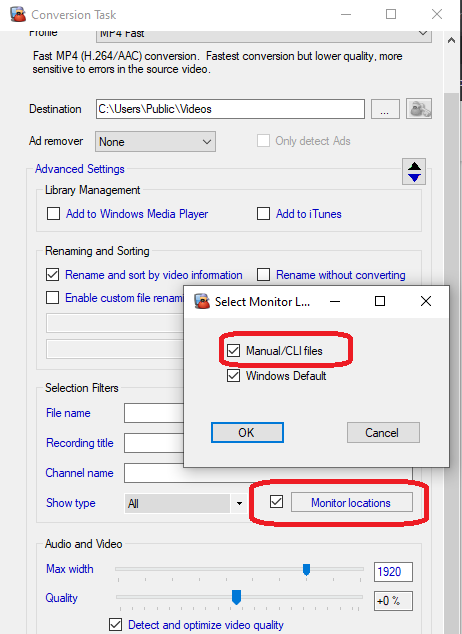
Wijs tot slot voor elk van deze conversietaken aan dat ze alleen mogen worden uitgevoerd wanneer het bestand via de CLI wordt doorgegeven in de optie Expertinstellingen → Selecteer monitorlocaties (zie hieronder)
I was hoping to avoid that approach as it’s prone to me forgetting to update the filter when I add a new show or movie.
Like I say, the current approach I have, which doesn’t use the post-processing script in Plex, assigns the conversion task based on where the file is saved. Since I know this when I set up the recording, it’s all automatic. Unfortunately, I lose the meta-data since Plex is back to recording in .TS.
If this is the only way to do it, I’ll make it work - I was hoping for an alternative. Thanks as always!
I think there are two aspects to a possible solution:
The post-processing script doesn’t want there to be monitored locations, but those are required to restrict a given encoding task. If it’s possible to set up the locations, but never have MCEBuddy check them for new locations, that would work
In conversion tasks expert settings, it looks like the manual/CLI task is separate from the folder folder restriction. Would it be possible to add an option for a file location mask (i.e., only perform this task in CLI if the file is in …/tv-commercials/) as part of the CLI selection? If that was available, there’s no need for an additional variable
Having the location but not checking could cause a lot of confusion. It’s a fairly fundamental aspect. The option we could look at is disabling the Monitor location but how will that help? I don’t see how Monitor location disabling would solve your issue?
From a GUI perspective I am unable to visualize how this would look. Open to ideas. However having said implement a variable would be much simpler and keeping in line with the overall architecture.
Totally agree regarding point 1 - if you could enter a path mask for the CLI selection, you wouldn’t need it, as I think about it a bit more. Point 1 was more about being able to select the location in Conversion Tasks > Expert.
In terms of how to expose point 2, I think I’d accomplish it like this:
When a user selects Manual / CLI in the expert settings, a text field appears below it allowing the user to enter a path. File Path Mask probably isn’t the friendliest name, but maybe something like “restrict to only these locations.” There should be a plus after the text field to allow you to add an additional location.
If the variable approach is easier, I guess it’s a matter of setting up what variable corresponds to a given conversion task. I the case of Plex, and how I’d use it, it would probably be “%~p1” - the path of the file.
For point 2, are you referring to conversion task or Monitor location. Because the CLI selection option already exists for conversion tasks and it also has a file filter so I’m not getting what exactly is missing here.
Coming to the variable, there already is a variable for custom scripts which passes the file path.
I’m referring to Conversion Tasks - Then I’m not sure how to do point two.
Are you saying that I could have Conversion Task > Expert Settings> Select Monitor Locations set to only “Manual / CLI” and include something like “\DISK8\Plex\TV-Commercials” in the File Name Match and it would only execute on those manual tasks where the file lives in \DISK8\Plex\TV-Commercials?
One other bit of information that may be important - Plex DVR allows only one post processing script, hence trying to move the logic of choosing which conversion task should be executed into MCEBuddy. If the only way is putting the logic into the script itself, then I’ll have to figure out how to do that there.
Is there an ability to specify which Conversion task should be executed via CLI?
No, the CLI is basically an API extension of manual addition. The fundamental architecture doesn’t allow manual selection of conversions tasks. Those linking only happen through the conversion task itself using the Select Monitor locations feature.
Yah. I don’t think I can handle it in the script without the ability to specify which conversion task should be used as a command line option. If that was there, I could parse the path in the script, pass the filename, and choose the appropriate conversion task. Any chance of getting something like:
Will_Tschumy any chance you would share your post processing script for Plex? I would like to look at it as I have used plex for years and just got a homerun and now learning mcebuddy to convert the .ts files to something more manageable for playing in plex.
Happy to share what I’ve got, though I should caveat that I’m not using it currently. What I’m currently doing is having MCEBuddy watch the different locations where PMS records the files, and run conversion tasks based on the location. That way, I can determine if the file should be screened for commercials or not.
That said, the postprocessing script I’ve tested is:
@echo off
C:\Progra~1\MCEBuddy2x\MCEBuddy.UserCLI.exe --command=engine --action=start
timeout /t 2 /nobreak > NUL
C:\Progra~1\MCEBuddy2x\MCEBuddy.UserCLI.exe --command=addfile --action=%1
timeout /t 10 /nobreak > NUL
:loop
for /f "delims=" %%o in ('C:\Progra~1\MCEBuddy2x\MCEBuddy.UserCLI.exe --command=jobstatus --action=%1 --quiet') do set status=%%o
if %status% == "not present" (
	Exit
) else (
	timeout /t 2 /nobreak > NUL
	goto loop
)
Once I finds out if they can allow for the manual specification of a conversion task from the command line, I’ll modify the script to choose the encoding task based off of the path in the %1 variable.
I didn’t write the script - I found it on one of the different Reddit threads (beware of the megafilz link - it’s an adware / spyware distribution vector).