# MCEBuddy FAQ - Common Issues and Errors
**URL:** https://discussion.mcebuddy2x.com/t/mcebuddy-faq-common-issues-and-errors/25
**Category:** Guides and Solutions
**Tags:** documentation
**Created:** [June 10, 2017, 2:21pm UTC](https://discussion.mcebuddy2x.com/t/mcebuddy-faq-common-issues-and-errors/25 "2017-06-10T14:21:02Z")
**Posts on this page:** 1
**Showing post:** 1
### Author:  [@mcebuddy2x](https://discussion.mcebuddy2x.com/u/mcebuddy2x)
#### Post date: [June 10, 2017, 2:21pm UTC](https://discussion.mcebuddy2x.com/t/mcebuddy-faq-common-issues-and-errors/25/1 "2017-06-10T14:21:02Z")
> **Table Of Contents:**
>
> - [MCEBuddy doesn’t capture all my commercials or cuts too little/much of the commercials](https://discussion.mcebuddy2x.com/t/mcebuddy-faq-common-issues-and-errors/25#p-43-mcebuddy-doesnt-capture-all-my-commercials-or-cuts-too-littlemuch-of-the-commercials-1)
>
> - [With newer MCEBuddy builds (2.3.15 and later) the video conversions fail randomly](https://discussion.mcebuddy2x.com/t/mcebuddy-faq-common-issues-and-errors/25#p-43-with-newer-mcebuddy-builds-2315-and-later-the-video-conversions-fail-randomly-2)
>
> - [MCEBuddy cannot access a mapped drive, network path/share or other drives such a google drive, dropbox drives etc](https://discussion.mcebuddy2x.com/t/mcebuddy-faq-common-issues-and-errors/25#p-43-mcebuddy-cannot-access-a-mapped-drive-network-pathshare-or-other-drives-such-a-google-drive-dropbox-drives-etc-3)
>
> - [MCEBuddy is not able to see or work with files on a network path/share](https://discussion.mcebuddy2x.com/t/mcebuddy-faq-common-issues-and-errors/25#p-43-mcebuddy-is-not-able-to-see-or-work-with-files-on-a-network-pathshare-4)
>
> - [I’m not able to use a network path for Monitor Path or Destination Path. It gives an error or nothing happens](https://discussion.mcebuddy2x.com/t/mcebuddy-faq-common-issues-and-errors/25#p-43-im-not-able-to-use-a-network-path-for-monitor-path-or-destination-path-it-gives-an-error-or-nothing-happens-5)
>
> - [I’ve setup MCEBuddy to monitor folders but it won’t add files/not all files show up in the queue](https://discussion.mcebuddy2x.com/t/mcebuddy-faq-common-issues-and-errors/25#p-43-ive-setup-mcebuddy-to-monitor-folders-but-it-wont-add-filesnot-all-files-show-up-in-the-queue-6)
>
> - [I’m adding files to MCEBuddy but it won’t show up in the queue](https://discussion.mcebuddy2x.com/t/mcebuddy-faq-common-issues-and-errors/25#p-43-im-adding-files-to-mcebuddy-but-it-wont-show-up-in-the-queue-7)
>
> - [I keep getting MCEBuddy Service is unavailable. Please start from windows control panel or check engine connection.](https://discussion.mcebuddy2x.com/t/mcebuddy-faq-common-issues-and-errors/25#p-43-i-keep-getting-mcebuddy-service-is-unavailable-please-start-from-windows-control-panel-or-check-engine-connection-8)
>
> - [I am unable to access files created by MCEBuddy from a remote computer on my shared drive](https://discussion.mcebuddy2x.com/t/mcebuddy-faq-common-issues-and-errors/25#p-43-i-am-unable-to-access-files-created-by-mcebuddy-from-a-remote-computer-on-my-shared-drive-9)
>
> - [I am unable to connect to the MCEBuddy engine using the Remote Client](https://discussion.mcebuddy2x.com/t/mcebuddy-faq-common-issues-and-errors/25#p-43-i-am-unable-to-connect-to-the-mcebuddy-engine-using-the-remote-client-10)
>
> - [MCEBuddy is causing to my computer to hang or crash (BSOD)](https://discussion.mcebuddy2x.com/t/mcebuddy-faq-common-issues-and-errors/25#p-43-mcebuddy-is-causing-to-my-computer-to-hang-or-crash-bsod-11)
>
> - [MCEBuddy sometimes creates video with no audio or a narrative audio track](https://discussion.mcebuddy2x.com/t/mcebuddy-faq-common-issues-and-errors/25#p-43-mcebuddy-sometimes-creates-video-with-no-audio-or-a-narrative-audio-track-12)
>
> - [How do I prevent MCEBuddy from reconverting my videos](https://discussion.mcebuddy2x.com/t/mcebuddy-faq-common-issues-and-errors/25#p-43-how-do-i-prevent-mcebuddy-from-reconverting-my-videos-13)
>
> - [My audio is out of sync with my video](https://discussion.mcebuddy2x.com/t/mcebuddy-faq-common-issues-and-errors/25#p-43-my-audio-is-out-of-sync-with-my-video-14)
>
> - [The video I’m converting succeeds but has garbled video and audio](https://discussion.mcebuddy2x.com/t/mcebuddy-faq-common-issues-and-errors/25#p-43-the-video-im-converting-succeeds-but-has-garbled-video-and-audio-15)
>
> - [When I use the MKV profile, I am unable to play it back with Windows Media Player](https://discussion.mcebuddy2x.com/t/mcebuddy-faq-common-issues-and-errors/25#p-43-when-i-use-the-mkv-profile-i-am-unable-to-play-it-back-with-windows-media-player-16)
>
> - [When I use an Unprocessed profile, I am unable to play it back with Windows Media Player](https://discussion.mcebuddy2x.com/t/mcebuddy-faq-common-issues-and-errors/25#p-43-when-i-use-an-unprocessed-profile-i-am-unable-to-play-it-back-with-windows-media-player-17)
>
> - [My video is stuttering/broken after conversion](https://discussion.mcebuddy2x.com/t/mcebuddy-faq-common-issues-and-errors/25#p-43-my-video-is-stutteringbroken-after-conversion-18)
>
> - [My original video has 6 channel/multichannel audio but my converted file only has stereo/2 channel audio](https://discussion.mcebuddy2x.com/t/mcebuddy-faq-common-issues-and-errors/25#p-43-my-original-video-has-6-channelmultichannel-audio-but-my-converted-file-only-has-stereo2-channel-audio-19)
>
> - [System does not wake up from standby/suspend even though I’ve enabled the Wake option in the settings page](https://discussion.mcebuddy2x.com/t/mcebuddy-faq-common-issues-and-errors/25#p-43-system-does-not-wake-up-from-standbysuspend-even-though-ive-enabled-the-wake-option-in-the-settings-page-20)
>
> - [System goes to sleep even if I have Unchecked Allow Sleep in the Settings page](https://discussion.mcebuddy2x.com/t/mcebuddy-faq-common-issues-and-errors/25#p-43-system-goes-to-sleep-even-if-i-have-unchecked-allow-sleep-in-the-settings-page-21)
>
> - [MCEBuddy does not start and stop at the time entered in the Settings page](https://discussion.mcebuddy2x.com/t/mcebuddy-faq-common-issues-and-errors/25#p-43-mcebuddy-does-not-start-and-stop-at-the-time-entered-in-the-settings-page-22)
>
> - [All conversions keep failing](https://discussion.mcebuddy2x.com/t/mcebuddy-faq-common-issues-and-errors/25#p-43-all-conversions-keep-failing-23)
>
> - [Files are immediately removed from the queue after starting the conversion](https://discussion.mcebuddy2x.com/t/mcebuddy-faq-common-issues-and-errors/25#p-43-files-are-immediately-removed-from-the-queue-after-starting-the-conversion-24)
>
> - [Random files keep failing at random points during a conversion](https://discussion.mcebuddy2x.com/t/mcebuddy-faq-common-issues-and-errors/25#p-43-random-files-keep-failing-at-random-points-during-a-conversion-25)
>
> - [Conversion never finishes (it just hangs)](https://discussion.mcebuddy2x.com/t/mcebuddy-faq-common-issues-and-errors/25#p-43-conversion-never-finishes-it-just-hangs-26)
>
> - [I pressed Start, I can see the files in the queue but Conversion task is showing Idle or Paused](https://discussion.mcebuddy2x.com/t/mcebuddy-faq-common-issues-and-errors/25#p-43-i-pressed-start-i-can-see-the-files-in-the-queue-but-conversion-task-is-showing-idle-or-paused-27)
>
> - [When I extract Closed Captions (CC) and Subtitles, they are out of sync by a few seconds OR get progressively out of sync after each commercial segment](https://discussion.mcebuddy2x.com/t/mcebuddy-faq-common-issues-and-errors/25#p-43-when-i-extract-closed-captions-cc-and-subtitles-they-are-out-of-sync-by-a-few-seconds-or-get-progressively-out-of-sync-after-each-commercial-segment-28)
>
> - [MCEBuddy seems to “hang” or have high CPU utilization while starting or adding files](https://discussion.mcebuddy2x.com/t/mcebuddy-faq-common-issues-and-errors/25#p-43-mcebuddy-seems-to-hang-or-have-high-cpu-utilization-while-starting-or-adding-files-29)
>
> - [How do I use my custom EDL and Closed Caption/Subtitles files while converting the videos](https://discussion.mcebuddy2x.com/t/mcebuddy-faq-common-issues-and-errors/25#p-43-how-do-i-use-my-custom-edl-and-closed-captionsubtitles-files-while-converting-the-videos-30)
>
> - [I’m trying to convert my video but after a few minutes the converted file has no audio](https://discussion.mcebuddy2x.com/t/mcebuddy-faq-common-issues-and-errors/25#p-43-im-trying-to-convert-my-video-but-after-a-few-minutes-the-converted-file-has-no-audio-31)
>
> - [My original WTV file works fine in Media Center Media Extender devices but I am unable to play back WTV files created by MCEBuddy in Media Center Media Extender devices](https://discussion.mcebuddy2x.com/t/mcebuddy-faq-common-issues-and-errors/25#p-43-my-original-wtv-file-works-fine-in-media-center-media-extender-devices-but-i-am-unable-to-play-back-wtv-files-created-by-mcebuddy-in-media-center-media-extender-devices-32)
>
> - [I’m using the WTV profile but the WTV videos created by MCEBuddy won’t play on Windows Media Player or Windows Media Center](https://discussion.mcebuddy2x.com/t/mcebuddy-faq-common-issues-and-errors/25#p-43-im-using-the-wtv-profile-but-the-wtv-videos-created-by-mcebuddy-wont-play-on-windows-media-player-or-windows-media-center-33)
>
> ## MCEBuddy doesn’t capture all my commercials or cuts too little/much of the commercials
>
> **Cause**
>
> > MCEBuddy uses Comskip and Showanalyzer to identify commercials (Comskip comes installed by default, you can choose to install ShowAnalyzer while installing MCEBuddy). The default ad detection settings for Comskip and ShowAnalyzer that ship with MCEBuddy are designed to be broadly compatible with most channels across the world. These settings may need to be adjusted to your country/channel to make it more accurate.
>
> **Resolution**
>
> > - If you’re using Comskip take a look at the [Comskip tuning guide](https://discussion.mcebuddy2x.com/t/29) to adjust the ad detection settings to suit your channel/country.
> > - If you’re using ShowAnalyzer take a look at the [ShowAnalyzer tuning guide](https://discussion.mcebuddy2x.com/t/4426).
>
> * * *
>
> ## With newer MCEBuddy builds (2.3.15 and later) the video conversions fail randomly
>
> **Cause**
>
> > When hardware acceleration is enabled, the stability of the conversion depends upon the stability of the [graphics drivers](https://discussion.mcebuddy2x.com/t/63). Older Intel [graphics drivers](https://discussion.mcebuddy2x.com/t/63) are unstable and cause handbrake and quicksync to crash and conversions to fail randomly.
>
> **Resolution**
>
> > Upgrade to the recommended Intel [graphics drivers](https://discussion.mcebuddy2x.com/t/63) to fix the issue. See this topic for more details: [GPU/Hardware Encoding/Acceleration FAQs](https://discussion.mcebuddy2x.com/t/63)
>
> * * *
>
> ## MCEBuddy cannot access a mapped drive, network path/share or other drives such a google drive, dropbox drives etc
>
> **Cause**
>
> > \\\ does not exist or MCEBuddy doesn’t have read permissions, skipping
> > Drive has not accessible to LocalSystem account
> > Network path is password protected
> > Network path is already mapped by Windows
> > No username has been entered in the authentication pages of MCEBuddy settings
> > Network path is offline
>
> **Resolution**
>
> > If you’re using a network path/share, mapped drives, google drives or any other non local drives, make sure these drives are available to the LocalSystem account for services running in system login. By default mapped drives are ONLY available for the user who has logged into the system and then mapped the drives (network, google, remote etc) in the user login.
> >
> > Since MCEBuddy runs as a service in using the LocalSystem account. Think of this a system login. You normally login through your own user login. So when you map network drives it is only valid for apps that are running through your user login. Since MCEBuddy is running through a system login your mapped drives and credentials doesn’t exist in the system login session (you entered them in your own login session).
> >
> > _To summarize, these are the options:_
> >
> > 1. When MCEBuddy is running as a LocalSystem service, to access network shares that have usernames and passwords you need to enter the username and password for each share separately in MCEBuddy. Use a fully qualified network path in MCEBuddy like `\\\` and enter the `username` and `password` credentials for that path in MCEBuddy by clicking on the credentials (  ) icon next to the path. Do not use your mapped drives (e.g. Z:) since they don’t exist outside your user login session.
> >
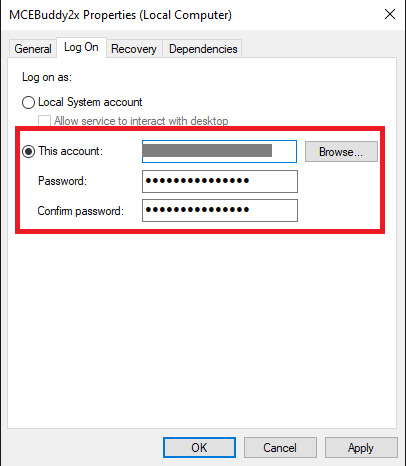
> > 2. Run the MCEBuddy2x windows service with the local user credentials (i.e. as a user login session). To do this open _Windows → Control Panel → Local Services_ then double click the _MCEBuddy2x_ service. Click on the `Log On` tab, change the _Log on as:_ to `This account`. Enter your _local user login_ `username` and `password` and click Ok. Now all your user mapped drives (e.g. Z:) will be available to MCEBuddy. See the screenshot below for details:
> >
> > >
>
> 
>
> > 3. Run MCEBuddy Engine as a Command Line Service from the _Start Menu -\> MCEBuddy -\> MCEBuddy Command Line Service_. This runs the engine locally (after the user has logged) from the User’s login and hence all mapped drives available to the user will be available to MCEBuddy.
> >
> > > a. For accessing network shares through CustomCommands you need to add the network login credentials to _Settings -\> Expert Settings -\> Network Authentication_. This MUST match the same credentials that have been used to access the network share via Windows Explorer or if the network share has been mapped to a drive. See point b. below
> > >
> > > b. Check if the path has already been mapped by Windows. To check the mappings, open a command prompt (_Start -\> Run -\> cmd_). Type `net use` and it should show you the mapped drives. Make sure you are using the same credentials that have been used to map the network shares/drives in Windows. Windows only allows for one set of credentials per network share. If you don’t need the mapped drive/paths you can disconnect them using the command `net /delete `
> > >
> > > c. Make sure the network drive is connected and accessible.
> >
> > Windows is VERY FINICKY. You cannot map the same Network share more than once with different credentials.
> >
> > If you’ve connected to the remote computer using Windows Explorer or the Run command, then you’ve already logged in with one set of credentials. If MCEBuddy now tries to connect with a different set of credentials it will FAIL since Windows will reject it.
>
> * * *
>
> ## MCEBuddy is not able to see or work with files on a network path/share
>
> **Cause**
>
> > Network path is password protected
> > Network path is already mapped by Windows
> > No username has been entered in the authentication pages of MCEBuddy settings
> > Network path is offline
>
> **Resolution**
>
> > a) If you’re using a network path/share in the _Monitor Task_ to monitor a network folder or if you’re using a network path/share as the destination folder in the _Conversion Task,_ make sure you enter the username and password in the MCEBuddy Credential box next to the Monitor Path or Destination Path text box by clicking on the button. Even if you shared the network share without a password or anonymous or guest or everyone, **you MUST enter atleast `Guest` in the username of the credential page**. This is because MCEBuddy uses LocalSystem account and not the local user account to authenticate on the network, so the mapped drives or logged on user authentication will not be accessible by MCEBuddy.
> >
> > b) If you’re using the _Add File_ button or dragging and dropping files/directories into the queue then you need to add the network login credentials to _Settings -\> Expert Settings -\> Network Authentication_. This MUST match the same credentials that have been used to access the network share via Windows Explorer or if the network share has been mapped to a drive. See point c) below.
> >
> > c) Check if the path has already been mapped by Windows. To check the mappings, open a command prompt (_Start -\> Run -\> cmd_). Type `net use` and it should show you the mapped drives. Make sure you are using the same credentials that have been used to map the network shares/drives in Windows. Windows only allows for one set of credentials per network share. If you don’t need the mapped drive/paths you can disconnect them using the command `net /delete `
> >
> > d) Make sure the network drive is connected and accessible.
> >
> > Windows is VERY FINICKY. You cannot map the same Network share more than once with different credentials.
> >
> > If you’ve connected to the remote computer using Windows Explorer or the Run command, then you’ve already logged in with one set of credentials. If MCEBuddy now tries to connect with a different set of credentials it will FAIL since Windows will reject it.
>
> * * *
>
> ## I’m not able to use a network path for Monitor Path or Destination Path. It gives an error or nothing happens
>
> **Cause**
>
> > Network path is password protected
> > Network path is already mapped by Windows
> > No username has been entered in the authentication page of MCEBuddy settings
> > Network path is offline
>
> **Resolution**
>
> > a) Make sure you enter the username and password in the MCEBuddy Credential box next to the Monitor Path or Destination Path text box by clicking on the button. Even if you shared the network share without a password or anonymous or guest or everyone, **you MUST enter atleast _Guest_in the username of the credential page**. This is because MCEBuddy uses LocalSystem and not the local user authentication and local system does not authenticate on the network.
> >
> > b) Check if the path has already been mapped by Windows, this can create a conflict.
> > To check the mappings, open a command prompt (_Start -\> Run -\> cmd_). Type `net use` and it should show you the mapped drives. You’ll have to disconnect the necessary paths (`net /delete `).
> > Alternatively, map your path to a drive in window (_explorer -\> tools -\> map network drive_) and then don’t enter any username and password in mcebuddy instead use the mapped drive.
> >
> > c) Make sure the network drive is connected and accessible.
> >
> > Windows is VERY FINICKY. You cannot MAP the same COMPUTER 2 times with different logins.
> >
> > If you’ve connected to the remote computer using Windows Explorer or the Run command, then you’ve already logged in with one set of credentials. If MCEBuddy now tries to connect with the configured credentials it will FAIL since Windows will reject it.
> >
> > 1. Either use your own credentials and MAP the remote computer folder using Windows explorer and DO NOT enter any credentials in the Monitor Task or Conversion task pages for that remote computer. In this case MCEBuddy will use the Windows Explorer credentials.
> >
> > OR
> >
> > 2. Enter the credentials in the MCEBuddy Monitor Task and Conversion Task page and let MCEBuddy connect to the remote computer.
> >
> > Remember you CANNOT DO BOTH of the above, otherwise MCEBuddy will not be able to access the remote computer.
>
> * * *
>
> ## I’ve setup MCEBuddy to monitor folders but it won’t add files/not all files show up in the queue
>
> **Cause**
>
> > The monitor path is invalid/incorrect
> > The file search pattern for the Monitoring folder does not match the files in the directory
> > The filters on the Conversion Task Settings page don’t match the file metadata
> > The files are marked readonly or are locked by another process. MCEbuddy needs exclusive access to convert files.
>
> **Resolution**
>
> > Check the monitor location directory configured in the monitor locations tasks
> > Check the file search pattern (e.g. `*.wtv`) for the monitoring location task. It may not be setup to accept all video/video files types in the directory being monitored.
> > Remove the readonly option on the files, right click on the file and select properties. _Uncheck_ the _ReadOnly_ box.
> > If the file is locked by another process, you’ll have to find out which process and then close the process/release the file.
> >
> > Check the Filename, Showname and Network name Filters on the Conversion Task Settings page
> >
> > Refer to the [MCEBuddy Advanced Commands](http://discussion.mcebuddy2x.com/t/30 "MCEBuddy Advanced Commands") page for more details on filename and showname pattern matching.
>
> * * *
>
> ## I’m adding files to MCEBuddy but it won’t show up in the queue
>
> **Cause**
>
> > The files are marked readonly or are locked by another process. MCEbuddy needs exclusive access to convert files.
> >
> > The filters in the Conversion Task Settings do not match the Metadata on the file
>
> **Resolution**
>
> > Remove the readonly option on the files, right click on the file and select properties. _Uncheck_ the _ReadOnly_ box. If the file is locked by another process, you’ll have to find out which process and then close the process/release the file.
> >
> > Check the Filename, Showname and Network name filters in the Conversion Task Settings page. If the filters don’t match the metadata on the file, the files will not be added to the queue.
>
> * * *
>
> ## I keep getting MCEBuddy Service is unavailable. Please start from windows control panel or check engine connection.
>
> **Cause**
>
> > A hardware driver terminated MCEBuddy
> >
> > OR the service has not been started
> >
> > OR there is a conflict with another port
> >
> > OR ShowAnalyzer is causing MCEBuddy to hang
>
> **Resolution**
>
> > Check that the service has been started. Click _Start -\> Control Panel -\> Windows Services -\> Select MCEBuddy 2.x -\> Right click and click Start_
> >
> > If the engine crashes when trying to convert a file this indicates a hard disk corruption. The hard disk driver will terminate MCEBuddy when trying to access a corrupted file. The corrupted file could be either the MCEBuddy installation or the file/video it’s trying to access which may be corrupted. Delete the file and uninstall/reinstall MCEBuddy as a temporary solution, the underlying cause is a failing hard disk which should be replaced at the earliest.
> >
> > If there is a conflict with another port, MCEBuddy will fail to start, check the Windows Event logs for more information and see the [Installation Issues](http://discussion.mcebuddy2x.com/t/24 "Installation Issues") for more details.
> >
> > If you have ShowAnalyzer installed; there’s a bug in ShowAnalyzer which causes it to hang. The MCEBuddy User Application makes a call to check the status of ShowAnalyzer which causes it to hang and it presents itself as not able to connect to service issue.
> >
> > Uninstallation, rebooting the computer and reinstalling Showanalyzer usually solves the problem. If it persists, try to uninstall ShowAnalyzer and use Comskip instead.
>
> * * *
>
> ## I am unable to access files created by MCEBuddy from a remote computer on my shared drive
>
> **Cause**
>
> > Permissions or owner are set incorrectly on the parent folder which causes the files created by MCEBuddy to inherit permission that don’t match the shared folder permissions.
>
> **Resolution**
>
> > Ensure that the destination folder and the files are inheriting the permissions from the parent folder and the parent folder has the permissions you need for others to view the files (e.g. Read/Write/Modify for Guests or any other user). Also ensure that owner for the parent folder is set to you.
>
> * * *
>
> ## I am unable to connect to the MCEBuddy engine using the Remote Client
>
> **Cause**
>
> > Firewall is blocking the ports
> >
> > Engine is not running
>
> **Resolution**
>
> > On the machine where MCEBuddy engine is installed, check _Enable remote access_ from _Settings -\> Advanced Settings -\> Expert Settings._ This will allow MCEBuddy to automatically create an exception in the Windows Firewall to allow incoming connections to the engine on the configured port. This only works with Windows Firewall, if you have a custom firewall then you’ll have the configure it manually.
> >
> > Ensure the MCEBuddy engine is running
>
> * * *
>
> ## MCEBuddy is causing to my computer to hang or crash (BSOD)
>
> **Cause**
>
> > MCEBuddy causes a lot of stress on system drivers causing a faulty system driver or hardware to fail or hang the system. MCEBuddy **CANNOT** cause a system crash or hang because it’s a managed application, the ONLY piece of software that can cause Windows to crash or hang is a driver.
> >
> > The hang or crash is because of a faulty driver (it is the only piece of code privileged enough to cause a bug check) or failing hardware on the system. At most an application can cause itself to crash where as kernel mode driver or failing hardware can cause a bug check or hang.
>
> **Resolution**
>
> > Most likely it is either your video driver, chipset driver, hard disk driver or faulty hardware which under stress is exposing the flaw. MCEBuddy can be quite stressful on the system so keeping good hardware and drivers (latest drivers are not always the most stable) is paramount.
> >
> > For a crash, to isolate the root cause of the bug check you will need a software like WinDBG to analyze the kernel memory dump created by windows in the _windows\minidump_ directory. This will tell you which driver caused the panic and why (big check code).
> >
> > You will need to start uninstalling or updating your drivers to find out which one is causing the issue.
> >
> > The most common cause of a crash is a faulty graphics driver. Start by disabling hardware acceleration in the _Conversion task → Advanced settings_ page. If that resolves the issue, replace your graphics driver with a [stable version](https://discussion.mcebuddy2x.com/t/63).
> >
> > The second most common reason is a SSD/HDD that’s going bad, followed by RAM that is failing.
> >
> > See this page for more details: [Reboot with no BSOD - #2 by RBoy](https://discussion.mcebuddy2x.com/t/435/2)
>
> * * *
>
> ## MCEBuddy sometimes creates video with no audio or a narrative audio track
>
> **Cause**
>
> > Some recording have multiple audio tracks, sometimes these audio tracks do no contain any audio or contain a narrative track (vision impaired).
>
> **Resolution**
>
> > Which audio track is selected depends up on how MCEBuddy is configured. If _Select the best soundtrack_ is checked, then the encoder (_handbrake_, _ffmpeg_ or _mencoder_) will decide the best audio track to use. Often _Handbrake_ can get this wrong while _ffmpeg_ is better at it. If you’re using this option, try to change the _order_ in your profiles.conf to have _ffmpeg_ as the first encoder.
> >
> > The other option is to uncheck _Select best soundtrack_, in which case MCEBuddy will choose the best audio track with the highest number of audio channels and highest bitrate.
> >
> > If you want a specific audio track, add the file to the conversion queue, right click on the file and select _MediaInfo_. This will show all the available audio tracks in the file. If the file contains impaired audio tracks then note the language of the audio track which NOT impaired. Open _Settings_-\> _Change Conversion Task_ Settings -\> _Advanced Settings_ -\> _Audio Language_. Select the audio language of the non-impaired audio track as determined from _MediaInfo_ earlier. Do not worry if more than one audio tracks (impaired and non-impaired) have the same language. MCEBuddy will choose the non-impaired audio track when an _Audio Language_ has been selected.
> >
> > For advanced users also refer to this topic for customizing profiles: [MCEBuddy - Understanding Profiles Basics](https://discussion.mcebuddy2x.com/t/27)
>
> * * *
>
> ## How do I prevent MCEBuddy from reconverting my videos
>
> > There are multiple options to prevent MCEBuddy from reconverting video files:
> >
> > 1. If you’re upgrading from a version **before 2.1.7** please save the history file manually (_C:\Program Files\MCEBuddy2x\config\history_) and restore it after upgrading. (2.1.7 and above save the history file during uninstallation and restore it on installation)
> > 2. If you’re using 2.1.5 or greater you can use this option to manually add the files not to be converted to the history file in the following manner. In Windows Explorer select all the files you want to add to the history file. Drag and Drop them into MCEBuddy window (MCEBuddy should be started and it should start converting them). Now select all the files in the conversion queue (Click on the 1st file and press _Shift + End_) and then click _Delete_. It will stop converting all the files and add them to the History file and they will not be reconverted unless you add them manually.
> > 3. Create a folder called _MCEBuddyArchive_. Put all files you don’t want converted into this folder, MCEBuddy will not convert any files inside this folder. Please note, when the _Archive Files_ option is selected in the advanced settings page, MCEBuddy does this automatically.
> > 4. Open the Conversion Task you’re created. In the Advanced Settings is a _File Name Match_ (read the documentation [MCEBuddy Advanced Commands](http://discussion.mcebuddy2x.com/t/30 "MCEBuddy Advanced Commands")). You can specify a negative filter (with `~`) to specify which files NOT to convert OR a regular filter to specify which files to convert.
> > 5. If you’re using the Monitor Locations option to automatically convert videos by monitoring a folder for new videos **AND** the Monitor Folder and Destination Folder are the **same** , change the Monitor Location _Search Pattern_. E.g. all source videos are WTV files, all destination videos are MP4. Open the Monitor Location task and set the _Search Pattern_ to `*.wtv`, so now MCEBuddy will only pick up WTV files to convert. Or you can use a -ve filter again like `[videos];~*.mp4` or `*.*;~*.mp4` to convert all files except .mp4 (the `[videos]` or `*.*` is important to specify since there must be atleast one +ve filter to select files)
>
> * * *
>
> ## My audio is out of sync with my video
>
> **Cause**
>
> > There are many reasons for the Audio to be out of sync with Video. It can vary from corrupted frames to country format differences.
>
> **Resolution**
>
> > There are many things can do to resync the Audio with the Video.
> >
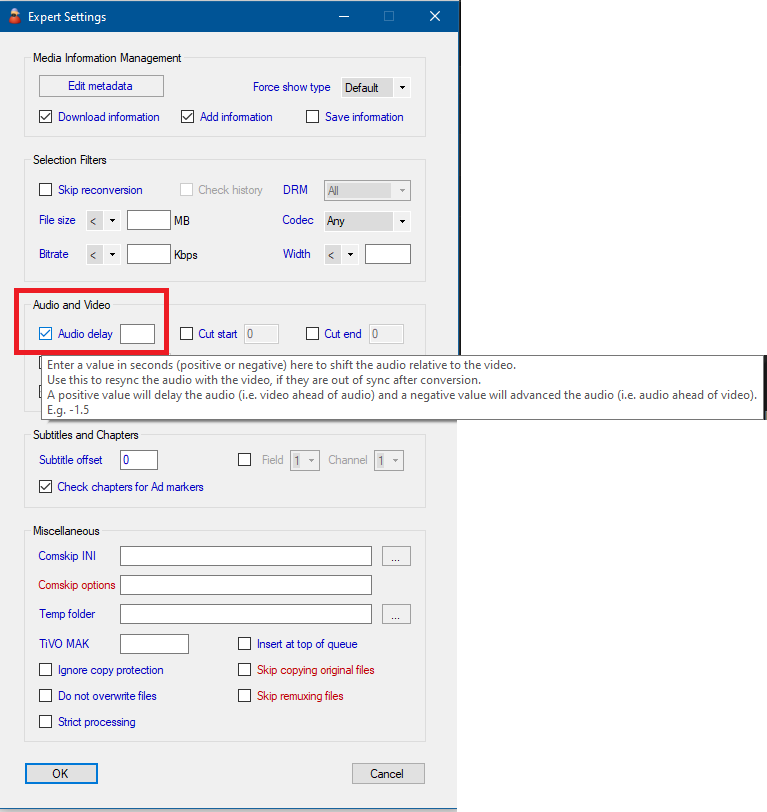
> > - You can adjust the audio sync using the _Conversion task → Expert settings → Audio delay_ setting by enter the number of seconds as a decimal to delay (+ve) or advance (-ve) the audio relative to the video.
> > 
> > - If you’re using a FFMPEG profile, trying setting the _-ss_ parameter to _-ss 30_ to see if that solves the problem.
> > - Try setting the _\-audiodelay=skip_ for the profile you’re using.
> > - If point 2 does not work, then you can use the same parameter and replace skip with a +ve or a -ve number. This will advance or retard the audio by that many seconds. This can help bring the Audio back into sync with the Video through trial and error. Make sure you replace _\_ with the profile encoder you’re using. e.g. _ffmpeg-audiodelay=1.25_
> > - If you’re using MEncoder in your profile and your audio is going out of sync ONLY when commercial removal is enabled then try to use the _mencoderedlskip=true_ option to use the MP4Box fallback method to strip out commercials. (again this will only help if commercials removal is causing the desync in audio while using MEncoder).
> > - If you’re using _FFMPEG_ or _Handbrake_ and _.mp4_ or _.m4v_ outputs then try playing with _CutMP4Alternative=true_
> > - Try setting _UniversalCommercialRemover=true_ if the above doesn’t work.
> >
> > Refer to the [MCEBuddy Advanced Commands](http://discussion.mcebuddy2x.com/t/30 "MCEBuddy Advanced Commands") for more details on the above.
>
> * * *
>
> ## The video I’m converting succeeds but has garbled video and audio
>
> **Cause**
>
> > The video is copy protected.
>
> **Resolution**
>
> > Record a non-copy protected video. There is no way to convert copy protected videos. To check for Copy Protection, right click on the video -\> click properties. Check the Video properties page and look for the copy protection field.
>
> * * *
>
> ## When I use the MKV profile, I am unable to play it back with Windows Media Player
>
> **Cause**
>
> > There is no MKV Media Splitter for Windows Media Player
>
> **Resolution**
>
> > Download and install a MKV Media Splitter, e.g. _Haali Media Splitter_
>
> * * *
>
> ## When I use an _Unprocessed_ profile, I am unable to play it back with Windows Media Player
>
> **Cause**
>
> > Windows does not have a MPEG-2 video splitter installed
>
> **Resolution**
>
> > Download and install a MPEG-2 video splitter. e.g. _FFDSHOW_
>
> * * *
>
> ## My video is stuttering/broken after conversion
>
> **Cause**
>
> > 1. Source video is corrupted or broken
> > 2. Check the log files, if the _average rate of dropped and/or duplicate frames_ are high, MCEBuddy is unable to detect the correct video frame rate which leads to stuttering video.
>
> **Resolution**
>
> > For corrupted original video, check the quality of the recording signal. A low quality signal can lead to corrupted recordings.
> >
> > For incorrect frame rate issues, open _mcebuddy.conf_. Under the section _[FFMpegBackupRemux]_, replace _auto_ in _-r auto_ with the correct frame rate of the video. (this can be done via trial and error or with the help of 3rd party software)
> >
> > e.g. `-r 25`
> > e.g. `-r 30*1000/`001`
> >
> > Refer to [MCEBuddy Advanced Commands](http://discussion.mcebuddy2x.com/t/30 "MCEBuddy Advanced Commands") for more details.
>
> * * *
>
> ## My original video has 6 channel/multichannel audio but my converted file only has stereo/2 channel audio
>
> **Cause**
>
> > MCEBuddy by default limits all the output audio to 2 channel audio (stereo) to preserve compatibility with many 3rd party players and Windows Media Player (which doesn’t support multichannel audio).
> >
> > Sometimes when source video files have multiple audio tracks with different number of channels, MCEBuddy downmixes the audio to preserve compatibility.
>
> **Resolution**
>
> > In MCEBuddy, in the _Conversion Tasks_ page, under _Advanced Settings_, enable _Multichannel Audio_. This will tell MCEBuddy to output multichannel audio if the source video has multichannel audio.
> >
> > If your source video has multiple audio tracks, then in the _Conversion Tasks_ page, under _Advanced Settings_, select the _Audio Language_ or enter the _3 digit Audio Language code_ corresponding to the audio track you want to keep. You can find out which audio tracks are there in the source file by _right clicking on the file_ in the _conversion queue_ from the MCEBuddy main _Status Page Window_ and selecting _MediaInfo_.
>
> * * *
>
> ## System does not wake up from standby/suspend even though I’ve enabled the Wake option in the settings page
>
> ## System goes to sleep even if I have Unchecked Allow Sleep in the Settings page
>
> **Cause**
>
> > Windows sometimes by default sets the Operating System to disable Wake Up timers. this is especially true for portable systems and laptops. When the System Wakeup timers are disabled no application can wake up the system from standy/suspend mode. Also sometime computer BIOS have disabled wake timers and wake support.
>
> **Resolution**
>
> > Make sure Allow Wake from USB (or equivalent power wake options) are enabled in the BIOS.
> >
> > Make sure Wake Timers are enabled in the system. Follow the steps below to enable Wake Timers.
> > 1. Open the _Control Panel_ (start -\> Control Panel)
> > 2. Look for _Power Options_ and open it
> > 3. For the active plan (the plan with the dot next to it), click on _Change Plan Settings_
> > 4. Click on _Change Advanced Power Settings_
> > 5. Click on the _+_ next to the _Sleep_ option
> > 6. Click on the _+_ next to _Allow Wake Timers_
> > 7. Set the option to _Enable_ for _On Battery_ and _Plugged In_
> > 8. Click _OK_
>
> * * *
>
> ## MCEBuddy does not start and stop at the time entered in the Settings page
>
> **Cause**
>
> > The wake and start time are accidentally set in a 12 hour mode
>
> **Resolution**
>
> > Set the start and stop time in a 24 hour mode. i.e. `01:30 PM` should be set as `13:30`
>
> * * *
>
> ## All conversions keep failing
>
> ## Files are immediately removed from the queue after starting the conversion
>
> ## Random files keep failing at random points during a conversion
>
> ## Conversion never finishes (it just hangs)
>
> **Cause**
>
> > MCEBuddy is running out of diskspace and the conversions fail in between at random points when it runs out of disk space. This is aggrevated when multiple conversions are being used.
> > Antivirus software is interfering with the conversion
>
> **Resolution**
>
> > a) Sometimes Antivirus software such as AVAST are known to interfere with MCEBuddy. These software lock down the file when it is accessed by MCEBuddy and this causes the conversion not to start, hang or randomly fail. Try to disable the Antivirus and see if that solves the problem.
> >
> > b) MCEBuddy needs _3 TIMES_ the size of the file being converted as free space on the _INSTALLATION DRIVE_. i.e. If MCEBuddy is installed on C drive and you’re converting a 4GB file then you need 12GB of free space on C drive.
> >
> > NOTE: MCEBuddy needs _1.5X free space_ for _ **EACH file being converted simultaneously** _. i.e. if you have 3 simultaneous conversions and each file is 4GB in size, you need 1.5x3x4 = 18GB of free space on the installation directory!
> >
> > If you do not have enough space in the installation drive, you have 2 options
> > 1. Reduce the number of simultaneous conversions
> > 2. Set the temp directory to point to a different drive where there is more space. Refer to [MCEBuddy Advanced Commands](http://discussion.mcebuddy2x.com/t/30 "MCEBuddy Advanced Commands") for more details.
>
> * * *
>
> ## I pressed Start, I can see the files in the queue but Conversion task is showing Idle or Paused
>
> **Cause**
>
> > The Start/Stop conversion time scheduler has been set on the settings page and the current time is not within the specified conversion period
> >
> > The Pause button has been pressed
>
> **Resolution**
>
> > There are the following options:
> > 1. Wait for the conversion time period specified in the settings page and MCEBuddy will start automatically
> > 2. Click settings and change/disable the Start/Stop time period in the settings page
> > 3. Click on the _Resume_ button on the GUI page
>
> * * *
>
> ## When I extract Closed Captions (CC) and Subtitles, they are out of sync by a few seconds OR get progressively out of sync after each commercial segment
>
> **Cause**
>
> > These are quirks of cutting mpeg files which sometimes requires manual adjustment
>
> **Resolution**
>
> > In the _Conversion Task → Expert Settings_ page, in the `Subtitle offset` box, (this optional will be available when `Extract subtitles and closed captions` is checked on the previous page), enter the number of seconds to adjust the subtitles (+ for forward or - for back). This will cause MCEBuddy to timeshift all the Subtitles to correct the sync issue. If you are seeing the subtitles get progressively out of sync after each commercial that was cut, then in the _Settings → General Settings → System Settings_ page under `Subtitle commercial cut sync` you can enter the number of seconds it is progressively going out of sync after each commercial segment is cut. See this topic for more details:
> > [Adjusting Subtitles / Closed Captions sync after removing commercials](https://discussion.mcebuddy2x.com/t/74)
>
> * * *
>
> ## MCEBuddy seems to “hang” or have high CPU utilization while starting or adding files
>
> **Cause**
>
> > Sometime a very large history file or a corrupted history file can cause MCEBuddy to hang.
> >
> > Similarly other corrupted files can cause MCEBuddy to hang.
>
> **Resolution**
>
> > 1. Delete the history file (in the _\\config_ directory (or you can click on _Show History_ on the main GUI page and click _Clear History_)
> >
> > 2. If that does not work, do a [clean install](https://discussion.mcebuddy2x.com/t/24) of MCEBuddy (refer to [Installation Issues](http://discussion.mcebuddy2x.com/t/24) -\> [How do I do a clean install of MCEBuddy](https://discussion.mcebuddy2x.com/t/24#cleaninstall))
>
> * * *
>
> ## How do I use my custom EDL and Closed Caption/Subtitles files while converting the videos
>
> **Resolution**
>
> > Place the _.EDL_ and/or _.SRT_ files along with the source video. MCEBuddy will automatically pick up these files (make sure _Remove Ads_ is set to _Comskip_ or _Showanalyzer_ and/or _Extract CC_ is enabled in the _Conversion Task_ - MCEBuddy will use the custom EDL/SRT files before generating new ones). Also make sure they have the same name as the source video.
> >
> > e.g. Source video -\> MySerial.wtv
> > EDL File -\> MySerial.edl
> > SRT File -\> MySerial.srt
> >
> > Refer to the [MCEBuddy Advanced Commands](http://discussion.mcebuddy2x.com/t/30 "MCEBuddy Advanced Commands") for more details on Custom EDL/SRT Files.
>
> * * *
>
> ## I’m trying to convert my video but after a few minutes the converted file has no audio
>
> **Cause**
>
> > TV shows sometimes change the audio formats between shows/advertisements which causes FFMPEG, Mencoder to fail.
>
> **Resolution**
>
> > Calculate (in seconds) the amount of time the previous show/advertisements are recorded before the start of the main show, add a few seconds to it for safety and put that value in the _Start Trim_ box under _Conversion Tasks -\> Advanced Settings_.
> >
> > E.g. There is 2 minutes and 30 seconds of video before the main show starts, put `155` in the _Start Trim_ box.
> >
> > Similarly calcuate the number of seconds after the show ends of video that is recorded (next show/advertisements) and put that value in the _End Trim_ box.
> >
> > This will make MCEBuddy trim the start and end of the video and leave just the show for conversions which should solve the problem of changing audio formats.
>
> * * *
>
> ## My original WTV file works fine in Media Center Media Extender devices but I am unable to play back WTV files created by MCEBuddy in Media Center Media Extender devices
>
> **Cause**
>
> > Some devices don’t support h.264 video in WTV files (which is created by the WTV profile)
>
> **Resolution**
>
> > Use the WTV Legacy profile which uses MPEG2 in WTV for older devices like Ceton Echo and Linksys DMA2100.
> >
> > The other option is to use the WTV Unprocessed profile if your original video plays back correctly on your Extender.
>
> * * *
>
> ## I’m using the WTV profile but the WTV videos created by MCEBuddy won’t play on Windows Media Player or Windows Media Center
>
> **Resolution**
>
> > This issue has been resolved with 2.3.15 and newer versions of MCEBuddy.
>
> * * *
---
_[View the full topic](https://discussion.mcebuddy2x.com/t/mcebuddy-faq-common-issues-and-errors/25)._